|
You can study the results in this view and in the grid.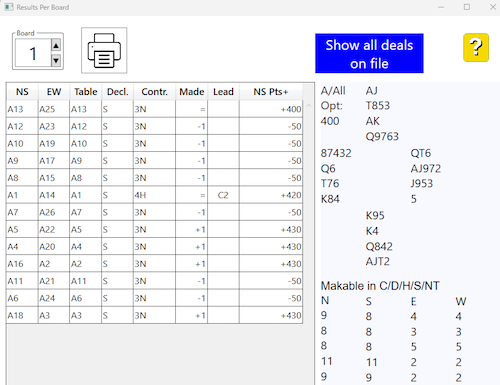
The deals are shown if they are available in the BOS system. See further the deals page. The button Show all deals on file starts DupSoft where you can analyze, amend, print, etc. the deals.
The results table
You can change the sort order by clicking on the header of the column that you want to give priority. A second click on the same header will change between ascending and descending.
Actual bidding
The bidding that led to a result will appear below the makables when the result is highlighted - if BridgeTab’s bidding module is used. See further the Bidding page.
CHANGE RESULT
Double-clicking a result will open the Change Result dialog:
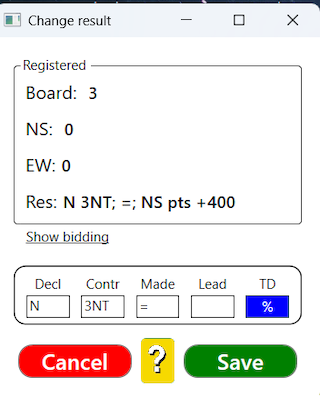
You can amend a result by entering/changing declarer, contract and/or the result. You will be warned if your entry will be considered as a remark.
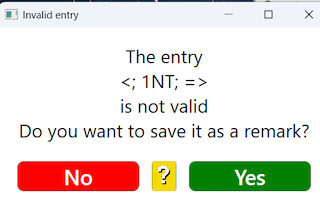
You can enter all sorts of remarks in the Change result dialog, but the scoring program might not act on your notes in the intended way. So, please check that it works before usage. Common notations are:
Not played (or "np")
Late play (or "lp")
RULINGS
40%-40%
40%-50%
40%-60%
50%-40%
50%-50%
50%-60%
60%-60%
A/A
A/A+
A/A-
A+/A
A-/A
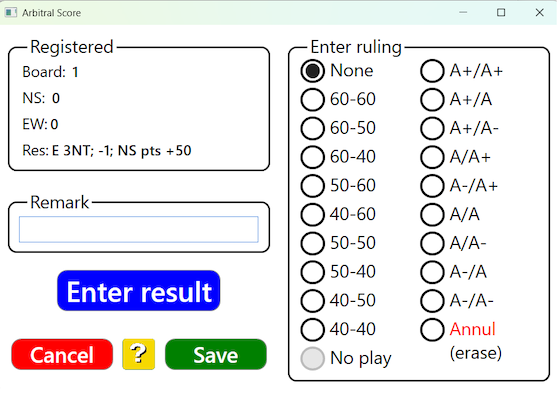
You are not limited to the notations stated above. You can enter 70%-30%, A-/A-, or whatever. But whatever you do, you should make sure that your scoring program acts on your rulings and remarks in the expected way. See the % button heading below if you want to enter a standard ruling.
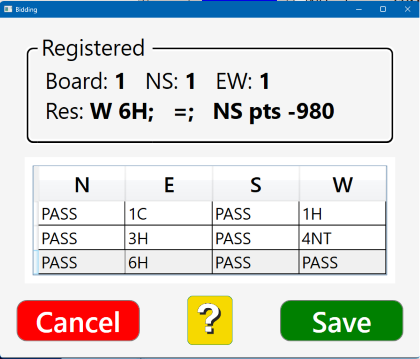
Show bidding
The Show bidding link opens a dialog in which you can amend the bidding.
% button (rulings)
The button leads to the Arbitral score dialog:
ANNUL
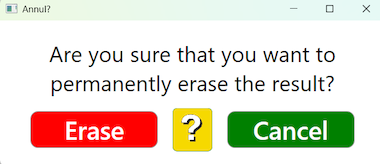
The Annul alternative will erase the result, i.e. it will have the same effect as if the board had not been played.

|

