|
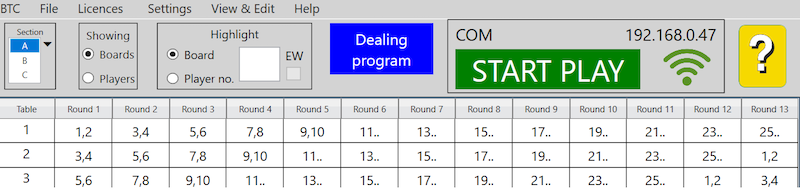
The BridgeTab Control (BTC) program gives an overview of the situation. It has three parts:
• The menues
• The header
• The grid
THE GRID
The grid will look as shown above before start. When started the grid will show how the game progresses.
Table column

When you click the START button the table column will be red.
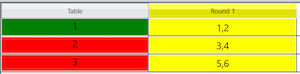
Tables that are logged on will be green.
Note that table 1 in the example shown above will shift from green to red if it would be logged out. This can happen if the tablet that has logged in as table 1 logs in as table 2 or 3 in our example.
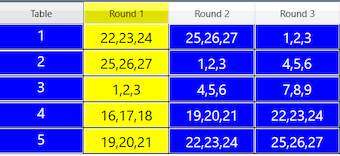
There is a pending change of movement that the tables must have if the tables get blue as shown below. See the Movement change page for details.
Round (Rd) columns
The current round is marked with yellow.
Finished rounds are marked green and the cells in finished rounds white.

The cells.
Played boards will “disappear” from the grid, see Table 3 in round 2 in the example shown above where board no. 1 has been played.

Cells will change from yellow to green when all boards in the current round have been reported.
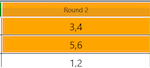
Lagging tables will show as orange. In the example shown below tables 2 and 3 have not reported any result in round 2, while table 3 has reported all boards (1-2).
CLICKING CELLS
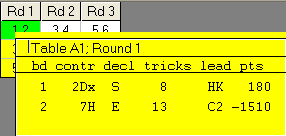
By clicking a cell you will display a summary of the results (if any). You can change or remove a result by clicking on it in the yellow tooltips box. Alternatively you can do it in the view results dialog.

|